How to Install FossBilling with Nginx on Ubuntu Linux

FOSSBilling is a free, open-source tool that helps you manage client billing and automation. It handles invoices, payments, and customer communication in one place. Why use it? It simplifies your business operations by keeping everything in your own controlled server environment. What happens when done? You will have a fully functional billing dashboard ready to accept payments.
Install Nginx on Ubuntu Linux
FOSSBilling needs a web server to display its pages. We will use Nginx. It is fast and reliable.
- Open your terminal and update your software list:
sudo apt update - Install Nginx:
sudo apt install nginx
You can manage the server using these commands:
- Stop:
sudo systemctl stop nginx - Start:
sudo systemctl start nginx - Enable at startup:
sudo systemctl enable nginx
Check if it works by visiting your server IP address in a web browser. 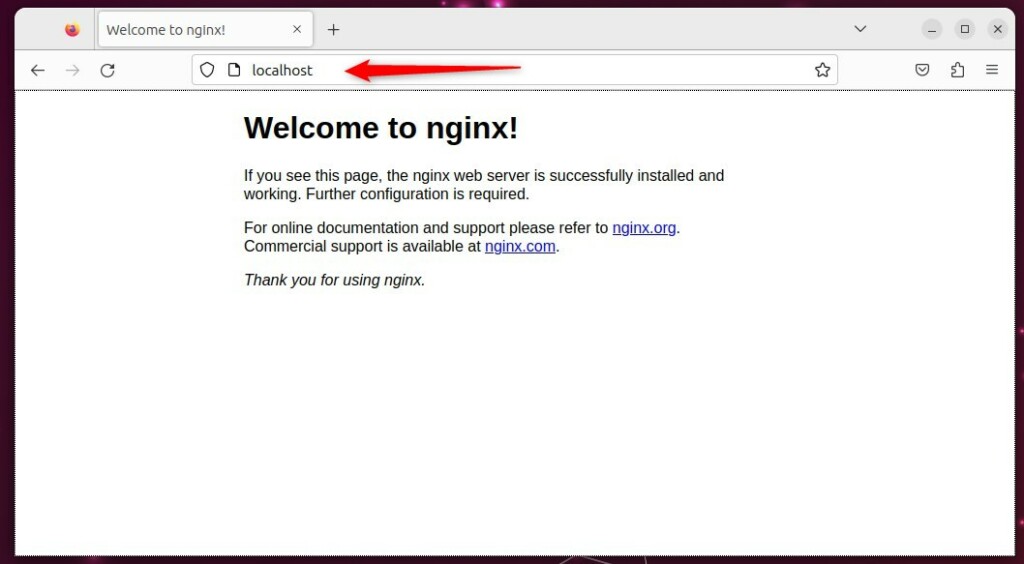
Install MariaDB on Ubuntu Linux
You need a database to store your billing information. We will use the official MariaDB repository for the latest version on Ubuntu 24.04 LTS.
- Install the repository helper:
sudo apt install software-properties-common curl - Add the MariaDB repo:
curl -LsS https://downloads.mariadb.com/MariaDB/mariadb_repo_setup | sudo bash - Install the server:
sudo apt install mariadb-server
Start and enable the service: sudo systemctl enable --now mariadb. For more help, visit How to install MariaDB on Ubuntu Linux.
Create FOSSBilling database
First, secure your database installation by removing test data and anonymous users:
sudo mysql_secure_installation
Follow the on-screen prompts. Now, create your database:
- Log in:
sudo mariadb - Run these commands:
CREATE DATABASE fossdb;CREATE USER fossdbuser@localhost IDENTIFIED BY 'your_password';GRANT ALL ON fossdb.* TO fossdbuser@localhost WITH GRANT OPTION;FLUSH PRIVILEGES;exit
Install PHP-FPM on Ubuntu Linux
FOSSBilling runs on PHP. Install the latest version available in your repositories along with the required modules:
sudo apt install php-fpm php-mysql php-intl php-curl php-cli php-zip php-common php-mbstring php-xml
Enable it to start automatically: sudo systemctl enable --now php8.3-fpm (Note: check your installed version with php -v).
General: Configure Nginx
First, create the web directory and set the correct permissions so your server can manage the files:
sudo mkdir -p /var/www/fossbilling
sudo chown -R www-data:www-data /var/www/fossbilling
Now, create the configuration file:
sudo nano /etc/nginx/sites-available/fossbilling.conf
Paste your server settings into this file, save it, and enable it:
sudo ln -s /etc/nginx/sites-available/fossbilling.conf /etc/nginx/sites-enabled/
sudo systemctl restart nginx
Download and Setup
Download the FOSSBilling files to your folder:
cd /tmp
curl https://fossbilling.org/downloads/stable -L --output FOSSBilling.zip
sudo unzip FOSSBilling.zip -d /var/www/fossbilling
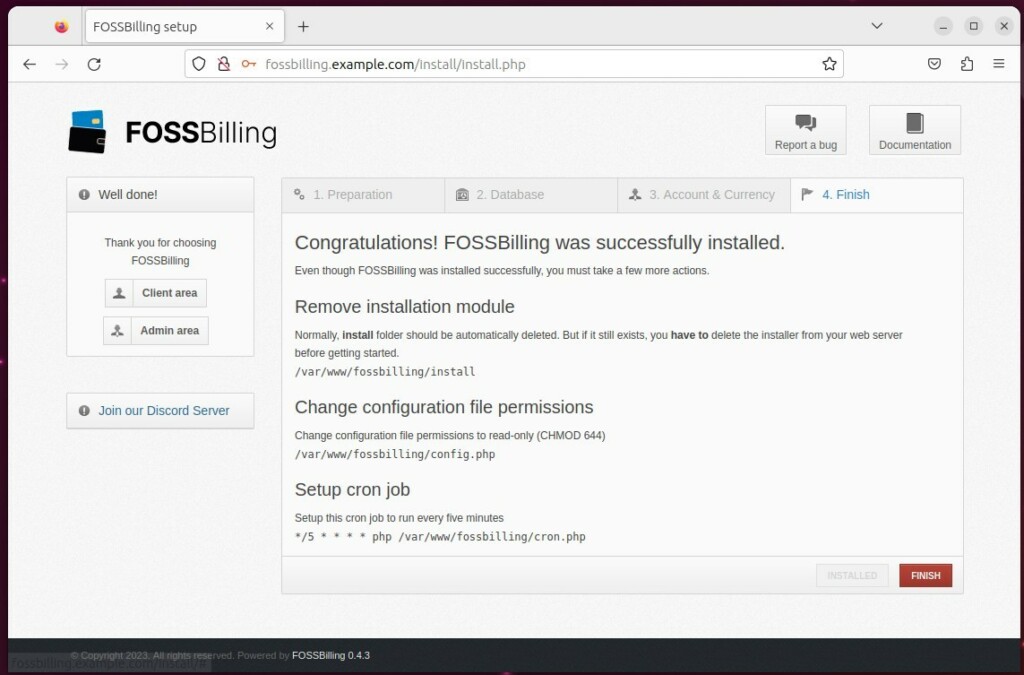
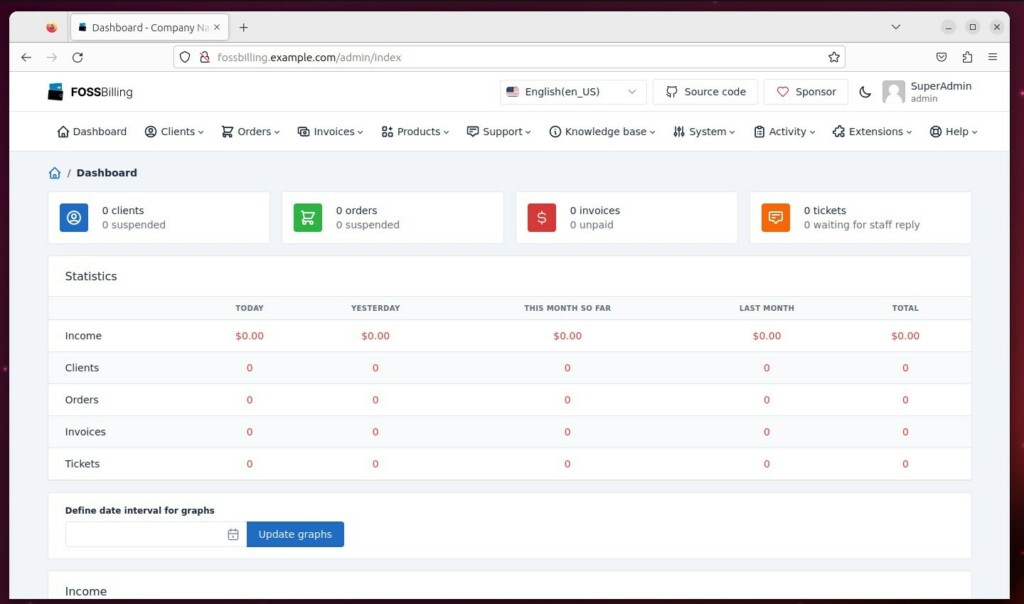
Visit your domain in a browser. 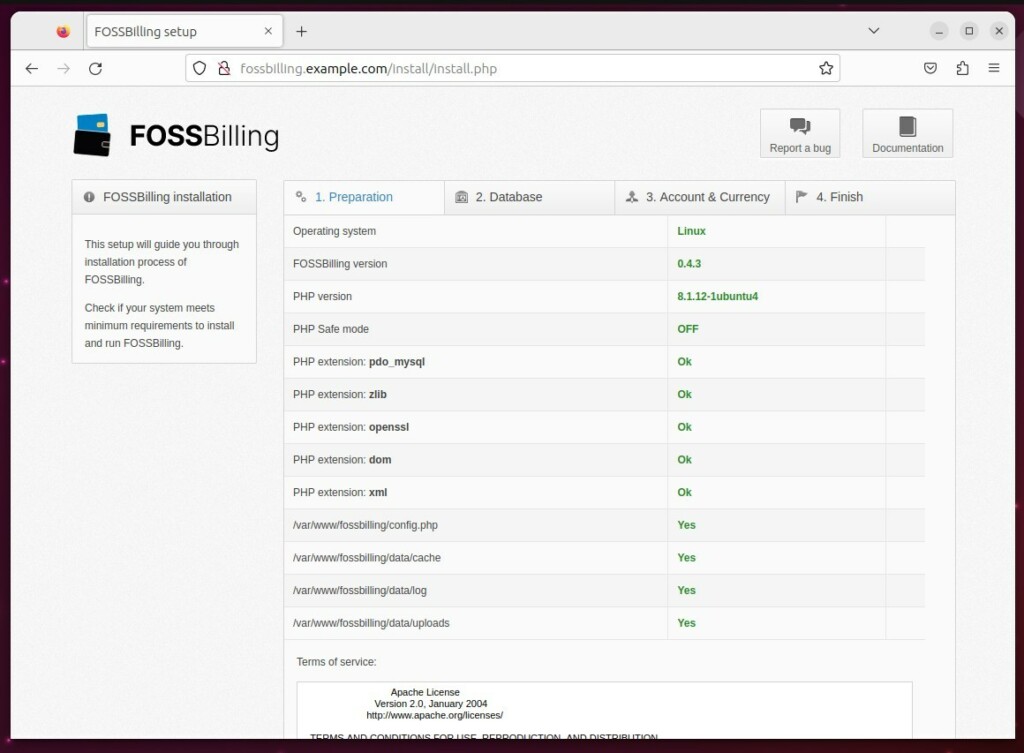
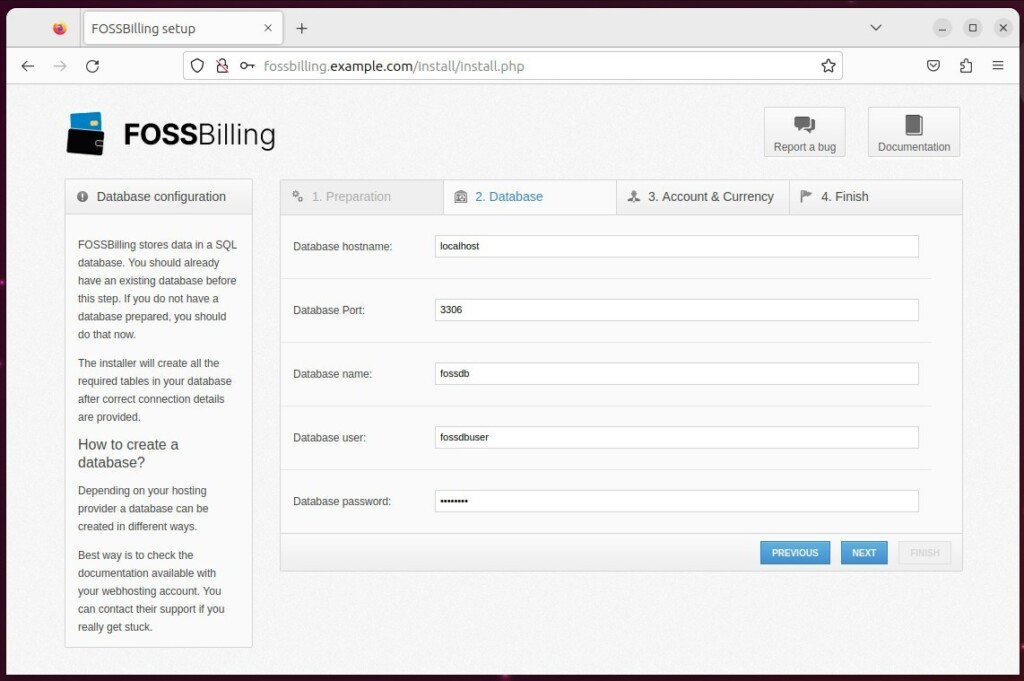
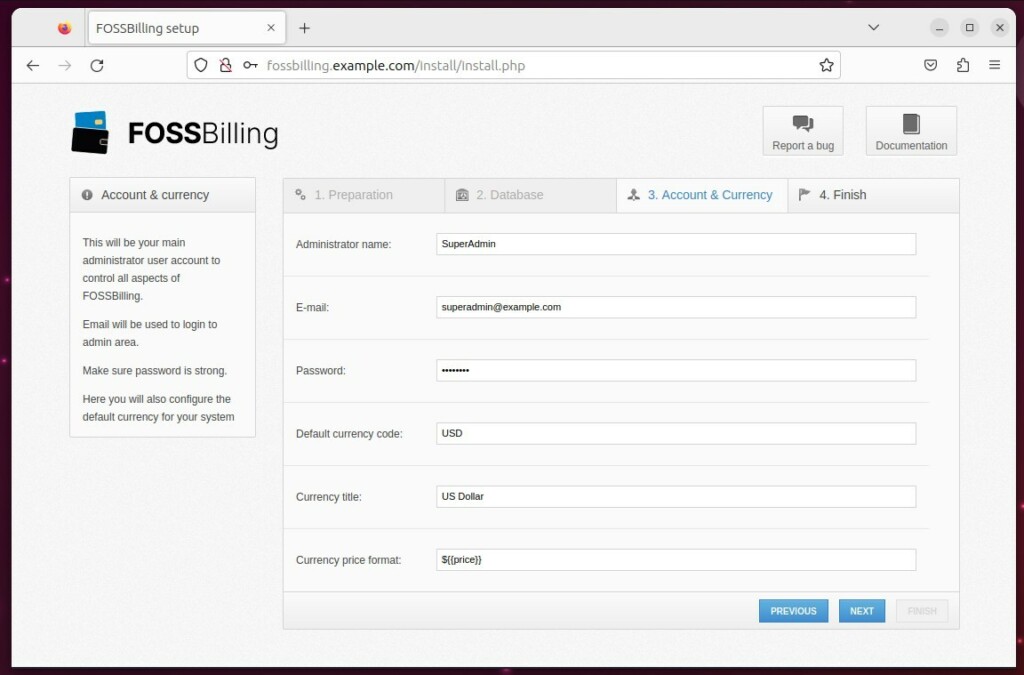
sudo rm -rf /var/www/fossbilling/install
Set up the background task (cron job):
sudo crontab -u www-data -e
Add this line: */5 * * * * php /var/www/fossbilling/cron.php
Was this guide helpful?





Leave a Reply Cancel reply